Bugs found in Agendrix SaaS

Agendrix is an innovative web-based platform designed to optimize workforce management. It offers a comprehensive suite of solutions that streamline tasks like staff scheduling, time tracking, and employee communication.
The purpose of Agendrix is to provide businesses with tools to reduce the time spent creating and managing schedules dramatically. It offers real-time updates, advanced reporting, employee availability tracking, and integration with various payroll systems.
Our QAwerk team conducted an in-depth Bug Crawl of Agendrix and identified a few minor issues that nonetheless affect its performance and overall user experience. Read the list below to see how this useful tool can be improved further.
Document not saving to selected folder in user profile
Severity:
Major
Precondition:
Log in to the account.
Steps to Reproduce:
- Click on the user’s profile.
- Click on the ‘Quick Actions’ button.
- Hover over “Add a document”.
- Click on “Create a document”.
- Choose a folder.
- Create a document.
- Check the selected folder.
Environment:
OS: MacOS Sequoia 15.1.1
Browsers: Chrome v.138.0.7204.158, Firefox v.141.0, Safari v.18.1.1
Actual Result:
The document is not created inside the selected folder.
Expected Result:
The created document should be correctly saved in the chosen folder.
User can’t deselect “Without position” option in “Primary position” dropdown
Severity:
Trivial
Precondition:
- Create an empty organisation.
- Log in to the account.
Steps to Reproduce:
- Add a position to the organisation.
- Add a user to the organisation.
- Try to deselect the “Without position” option.
Environment:
OS: MacOS Sequoia 15.1.1
Browsers: Chrome v.138.0.7204.158, Firefox v.141.0, Safari v.18.1.1
Actual Result:
The position added earlier is not shown in the list, and the “Without position” can not be deselected.
Expected Result:
The position should be shown, and the “Without position” can be deselected.
Tooltip is not displayed when hovering over third icon on Employees page
Severity:
Trivial
Precondition:
Log in to the account.
Steps to Reproduce:
- Go to the “Employees” page.
- Click on the “Invitations” tab.
- Hover over the third icon on the left side.
Environment:
OS: MacOS Sequoia 15.1.1
Browsers: Chrome v.138.0.7204.158, Firefox v.141.0, Safari v.18.1.1
Actual Result:
The tooltip is not shown.
Expected Result:
The tooltip should be shown.
Addition of “No Name” to single word user names
Severity:
Trivial
Precondition:
- Log in to the account.
- Create an empty organisation.
Steps to Reproduce:
- Add users in bulk mode.
- Use only the First name in the list.
Environment:
OS: MacOS Sequoia 15.1.1
Browsers: Chrome v.138.0.7204.158, Firefox v.141.0, Safari v.18.1.1
Actual Result:
Newly added users display “NO NAME” as their surname.
Expected Result:
The system should prevent user addition without the inclusion of a last name, similar to the restriction in the “Add Single” user mode.

User is unable to select an export option; survey results are automatically downloaded upon clicking “Export”
Severity:
Trivial
Precondition:
- Log in to the account.
- Create a survey and complete it.
Steps to Reproduce:
- Open the “Surveys” page under the “HR” tab.
- Open the created survey.
- Click on “Export”.
Environment:
OS: MacOS Sequoia 15.1.1
Browsers: Chrome v.138.0.7204.158, Firefox v.141.0, Safari v.18.1.1
Actual Result:
Immediately upon clicking “Export”, the survey results are downloaded without the user having the opportunity to select an export option.
Expected Result:
The export process should begin only after the user selects a specific export option.
Meatballs menu is not visible when notification modal window is active
Severity:
Trivial
Precondition:
Log in to the account.
Steps to Reproduce:
- Click on the “Notifications” icon.
- Click on the “Meatballs” menu.
Environment:
OS: MacOS Sequoia 15.1.1
Browsers: Chrome v.138.0.7204.158, Firefox v.141.0, Safari v.18.1.1
Actual Result:
The menu is hidden.
Expected Result:
The menu should be fully visible.

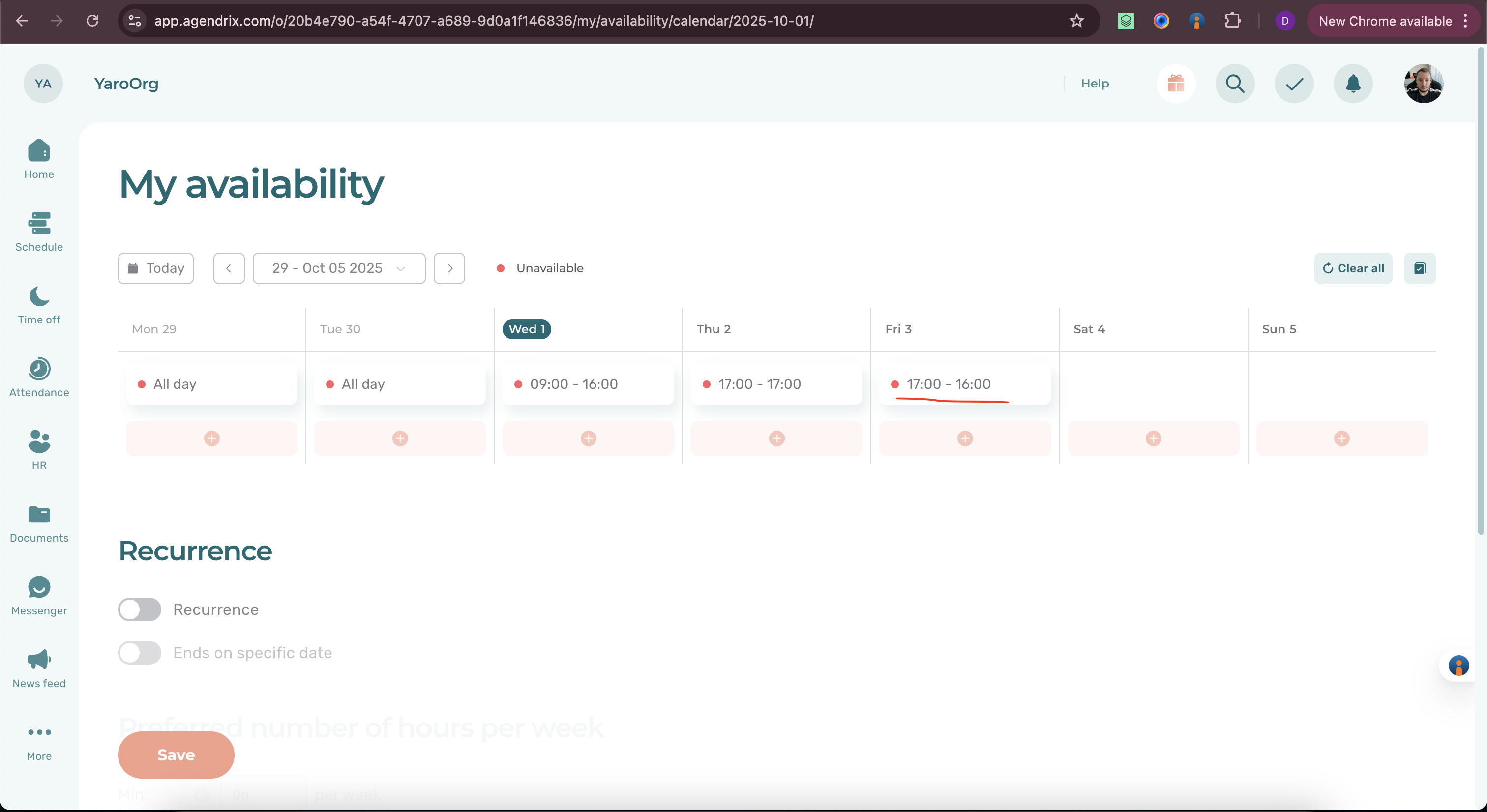
User can set unavailability where start and end times are same
Severity:
Trivial
Precondition:
Log in to the account.
Steps to Reproduce:
- Click on the “Profile” icon.
- Click on “My availability”.
- Click on the [ + ] near any day.
- Remove the “All day” toggle.
- Set “From” as 17:00.
- Set “To” as 17:00.
- Click on the “Create” button.
Environment:
OS: MacOS Sequoia 15.1.1
Browsers: Chrome v.138.0.7204.158, Firefox v.141.0, Safari v.18.1.1
Actual Result:
The unavailability is set.
Expected Result:
The unavailability should not be set with identical start and end times.

User can set unavailability where start time is greater than end time
Severity:
Trivial
Precondition:
Log in to the account.
Steps to Reproduce:
- Click on the “Profile” icon.
- Click on “My availability”.
- Click on the [ + ] near any day.
- Remove the “All day” toggle.
- Set “From” as 17:00.
- Set “To” as 16:00.
- Click on the “Create” button.
Environment:
OS: MacOS Sequoia 15.1.1
Browsers: Chrome v.138.0.7204.158, Firefox v.141.0, Safari v.18.1.1
Actual Result:
The unavailability is set.
Expected Result:
The system should not allow unavailability to be set when the “Start Time” is later than the “End Time”.
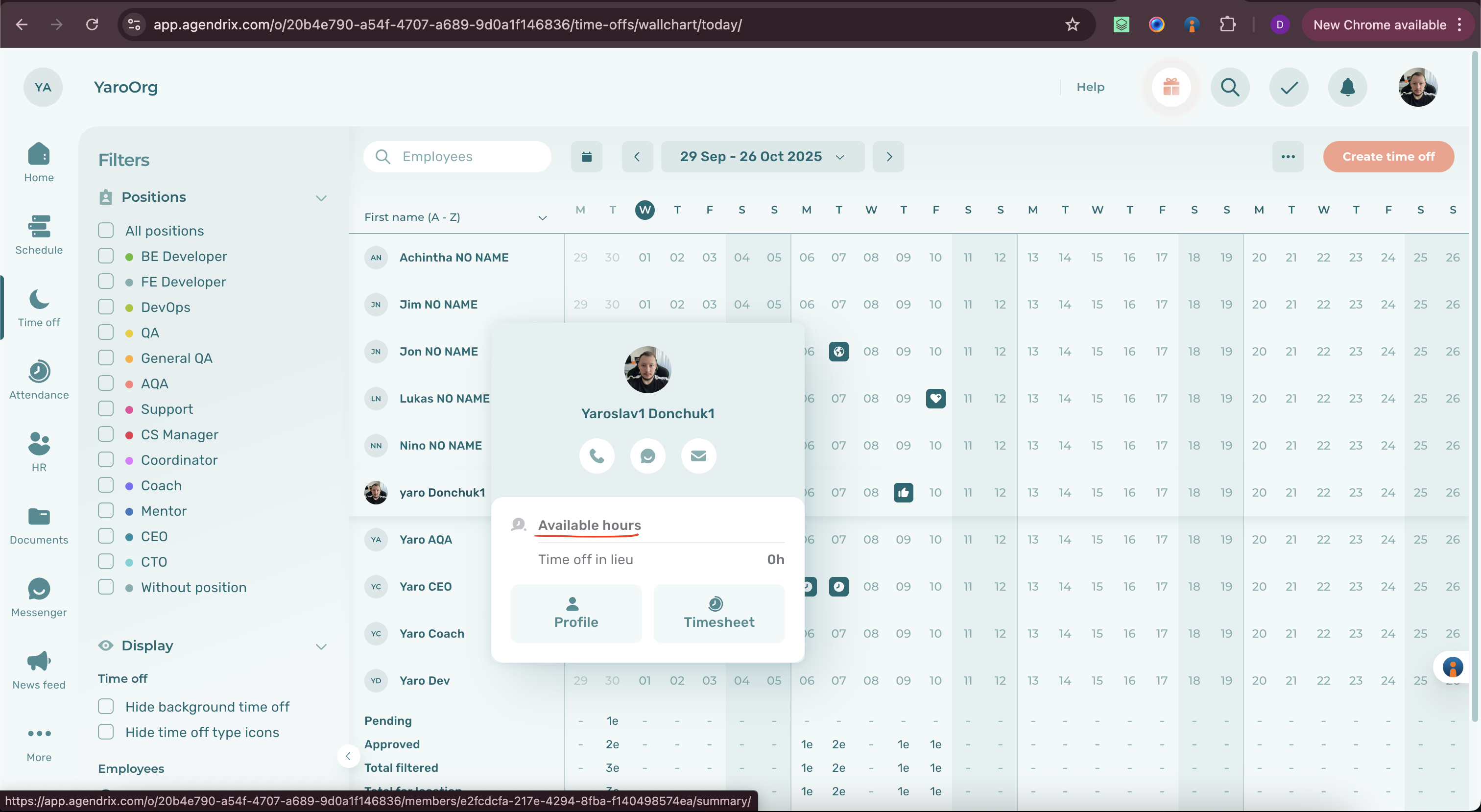
Available hours are not visible in modal window when hovering over employee’s name
Severity:
Trivial
Precondition:
- Log in to the account.
- Add some time of unavailability.
Steps to Reproduce:
- Click on the “Time Off”.
- Click on the “Vacation planner”.
- Hover over the account name.
Environment:
OS: MacOS Sequoia 15.1.1
Browsers: Chrome v.138.0.7204.158, Firefox v.141.0, Safari v.18.1.1
Actual Result:
The hours are not shown.
Expected Result:
The hours should be shown.
Saved availability hours are not displayed in Summary section on Availability widget
Severity:
Trivial
Precondition:
- Log in to the account.
- Add one day of unavailability for the user.
Steps to Reproduce:
- Open the user’s profile.
- Click on the “Summary”.
- Scroll down to the “Availability” widget.
Environment:
OS: MacOS Sequoia 15.1.1
Browsers: Chrome v.138.0.7204.158, Firefox v.141.0, Safari v.18.1.1
Actual Result:
The time is not shown.
Expected Result:
The time should be shown.
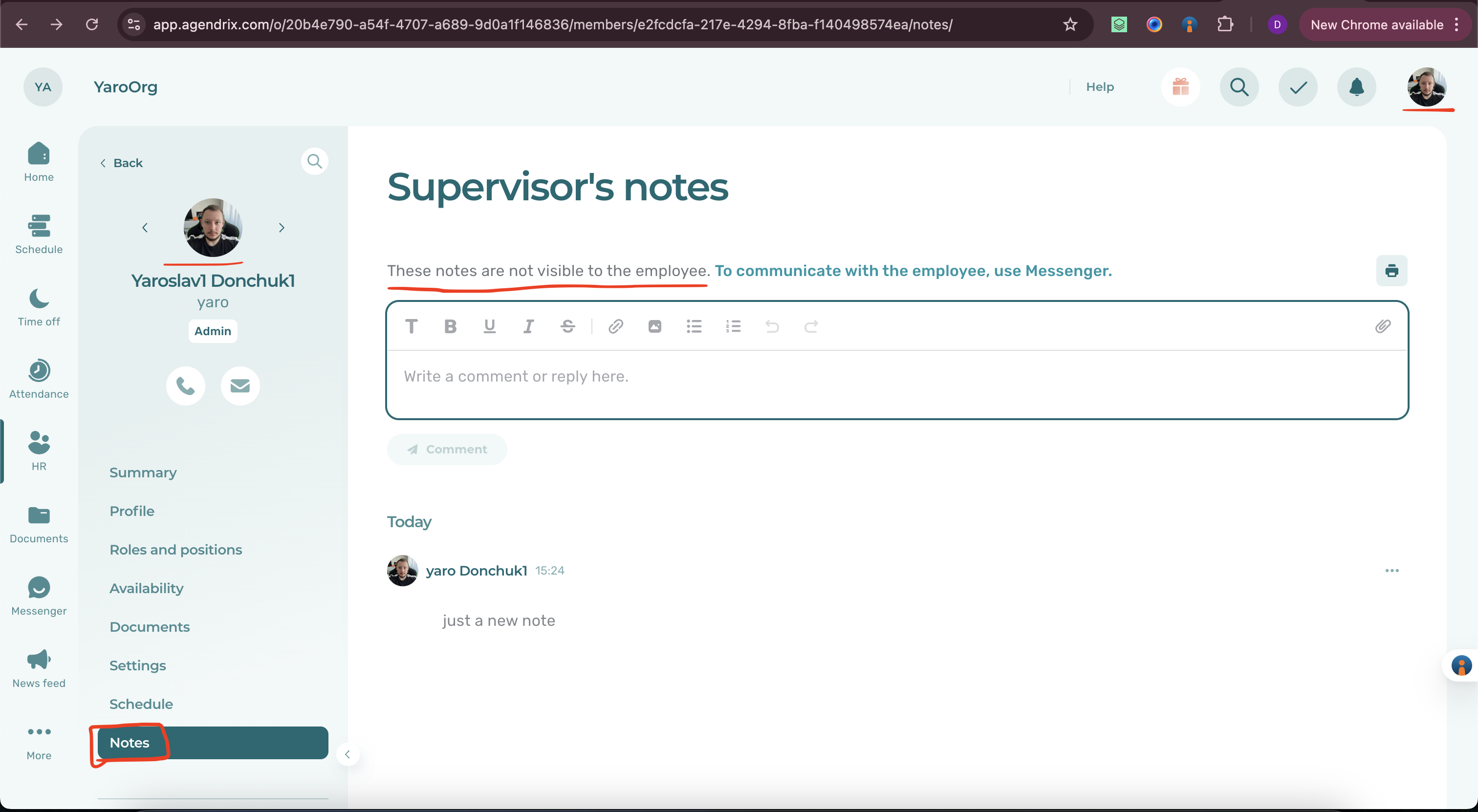
Employee notes are visible to employee with Admin status
Severity:
Trivial
Precondition:
- Log in to the account.
- Open your profile.
- Open the “Vacation Planner”.
- Click on your name.
Steps to Reproduce:
- Click on the “Notes”.
- Type any text in the field.
- Click on the “Comment” button.
Environment:
OS: MacOS Sequoia 15.1.1
Browsers: Chrome v.138.0.7204.158, Firefox v.141.0, Safari v.18.1.1
Actual Result:
The notes are shown.
Expected Result:
The notes should not be shown.
User can’t start conversation in messenger with created but not Active/Confirmed/Activated account
Severity:
Trivial
Precondition:
- Log in to the account.
- Create an account, but don’t confirm it via email.
Steps to Reproduce:
- Click on the “Messenger”.
- Click on the “New Conversation”.
- Search for the previously created user.
Environment:
OS: MacOS Sequoia 15.1.1
Browsers: Chrome v.138.0.7204.158, Firefox v.141.0, Safari v.18.1.1
Actual Result:
The user is not visible in the search results, and the user can’t start a conversation.
Expected Result:
The user should be displayed in the search results, and the conversation can be started.
Inconsistent “Save” button activation rules across different toggles
Severity:
Trivial
Precondition:
Log in to the account.
Steps to Reproduce:
- Click on the “Meatballs” menu.
- Click on the “Settings”.
- Click on the “Human Resources”.
- Click on the “Enable” toggle.
- Pay attention to the activation of the “Save” button.
- Click on the “Profile” icon.
- Click on “My profile”.
- Scroll down to the “Multi-factor authentication” section.
- Click on the toggle.
- Pay attention to the activation of the “Save” button.
Environment:
OS: MacOS Sequoia 15.1.1
Browsers: Safari v.18.1.1
Actual Result:
Two of the “Save” buttons are not activated and are not clickable in some cases.
Expected Result:
The buttons should be activated by the same rules.
The app has a few bugs that affect its UI, along with others that have a minor impact on its overall functionality. Collaborating with expert testers to address these issues could help Agendrix deliver a more reliable and efficient user experience, saving their clients time and effort.