Bugs Found in Tripline for iOS



Tripline is a highly promising platform that lets you create interactive, shareable maps featuring your own routes, photos, and text. It’s an excellent tool for travelers, educators, and anyone who enjoys planning and sharing their journeys.
Delving further into its features, Tripline offers timeline-based map creation, GPS tracking, and social networking integration. This enables users to tell dynamic stories of their travels, complete with time-stamped geographical locations and user-friendly sharing options.
Our team at QAwerk conducted a bug crawl on Tripline to evaluate its performance and user experience. We have discovered several bugs that may affect the platform’s efficiency, and we invite you to learn more about our findings below.
Entered data is cleared after tapping ‘Create My Account’ when location validation fails
Severity:
Major
Precondition:
- The app is installed.
- The user is on the ‘Create Account’ page.
Steps to Reproduce:
- Input data into the ‘Full Name’ and ‘Username’ fields on the form.
- Tap the ‘Create My Account’ button.
Environment:
iPhone 14 Pro, iOS version 26.4.2
Actual Result:
After tapping the ‘Create My Account’ button, the app displays a ‘Location required’ message, and all previously entered data is cleared.
Expected Result:
The app should show the validation error while keeping all entered values, so the user can correct only the missing/invalid field.
User can save their profile without specifying ‘Home City’ even though this field is mandatory during registration
Severity:
Major
Precondition:
The user has been registered successfully.
Steps to Reproduce:
- Navigate to the ‘User’s Settings’ section.
- Clear the ‘Home City’ field.
- Tap the ‘Save’ button.
Environment:
iPhone 14 Pro, iOS version 26.4.2
Actual Result:
The user successfully registers with a filled ‘Home City’ field. After opening profile settings, the user removes the ‘Home City’ value, and the profile is saved successfully without any validation error.
Expected Result:
Validation rules should be consistent across the application. Therefore, if the ‘Home City/Location’ field is mandatory, the user should not be able to save the profile with an empty value. Alternatively, if the field is optional, the user should not be required to fill it in during registration.
Profile image is not updated immediately after upload
Severity:
Major
Precondition:
The user is on the ‘User’s Settings’ page.
Steps to Reproduce:
- Update the profile photo.
- Save the changes.
- Navigate to the home page.
- Observe the user’s image.
Environment:
iPhone 14 Pro, iOS version 26.4.2
Actual Result:
After adding or changing the profile image, it is not displayed immediately. It becomes visible only after the app is closed and reopened.
Expected Result:
The uploaded profile image should be displayed immediately after it is uploaded and saved, without requiring an app restart.
Excessive blank space appears above form during ‘New Trip’ flow
Severity:
Major
Precondition:
The user is on the ‘New Trip’ form.
Steps to Reproduce:
- Enter the trip title.
- Place the cursor in the ‘Main Location’ field.
Environment:
iPhone 14 Pro, iOS version 26.4.2
Actual Result:
After entering a trip title and tapping the ‘Main Location’ field, the screen layout shifts unexpectedly. A large empty area appears at the top of the screen, and the form controls are pushed toward the bottom near the keyboard. This occurs in other forms as well.
Expected Result:
The screen should adjust smoothly when the keyboard appears, keeping the focused field visible without creating excessive empty space or disrupting the layout.
‘Add People’ screen blocks further navigation
Severity:
Major
Precondition:
The user is on the ‘New Trip’ page.
Steps to Reproduce:
- Enter the trip title.
- Tap the ‘Next’ button.
Environment:
iPhone 14 Pro, iOS version 26.4.2
Actual Result:
After opening the ‘Add People’ screen, no ‘Back’, ‘Close’, ‘Cancel’, or ‘Done’ control is available. The user cannot return to the previous screen or navigate elsewhere within the application. The only workaround is to close and reopen the app.
Expected Result:
The user should be able to leave the ‘Add People’ screen at any time using a visible navigation control or a supported system navigation gesture.
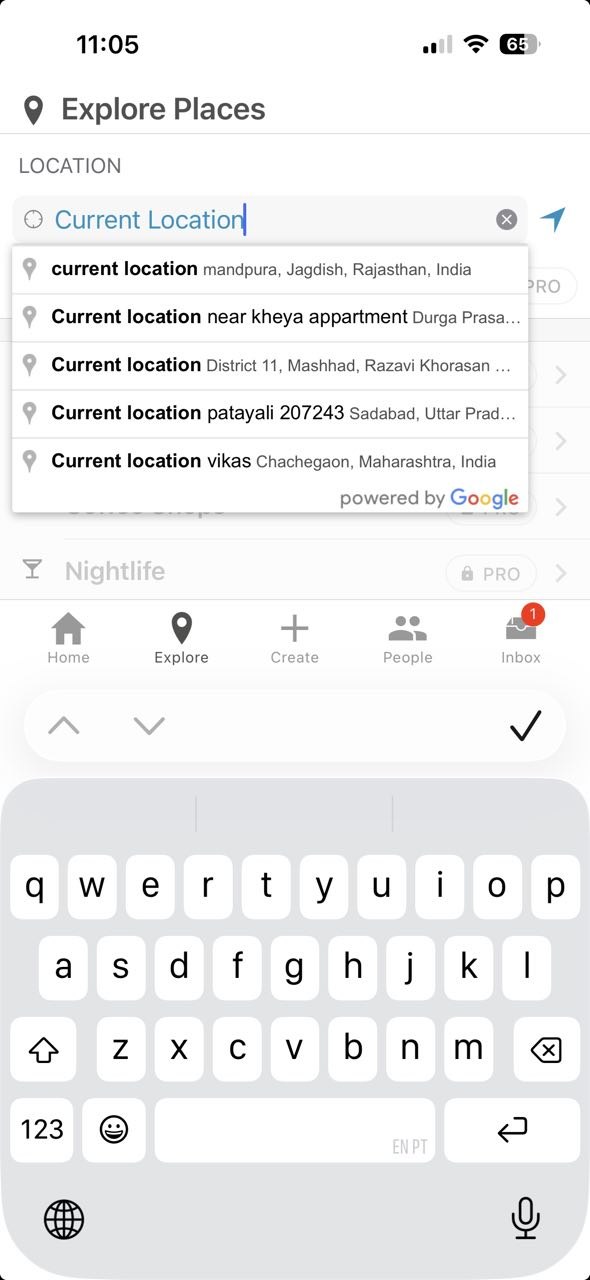
‘Current Location’ placeholder is treated as search query and returns unrelated location suggestions
Severity:
Major
Precondition:
The user is on the ‘Explore’ tab.
Steps to Reproduce:
Place the cursor in the input field.
Environment:
iPhone 14 Pro, iOS version 26.4.2
Actual Result:
The app displays Google autocomplete results for the literal text ‘Current Location’, including unrelated places such as locations in India, rather than resolving the user’s actual device location.
Expected Result:
The app should either use the device’s GPS location and display relevant nearby places or show the ‘Current Location’ only as a placeholder/action, not as searchable text.
Incorrect trip details are displayed before selected public trip details (reproduces sometimes)
Severity:
Major
Precondition:
- The user is on the home page.
- The user has an existing trip.
Steps to Reproduce:
- Switch to the ‘Search’ tab.
- Enter any search criteria, e.g., ‘London’.
- Select any result item from the list.
Environment:
iPhone 14 Pro, iOS version 26.4.2
Actual Result:
Sometimes, after opening a public trip from the search results, the screen first displays the user’s own trip details at the top. After scrolling down, the selected public trip details become visible.
Expected Result:
Only the selected public trip details should be displayed after opening a search result. User’s own trip details should not appear on the same screen.
‘Clear’ (X) button is displayed in empty ‘Public Trips’ search field
Severity:
Minor
Precondition:
The user is on the home page.
Steps to Reproduce:
- Navigate to the ‘Search’ tab.
- Enter any search criteria.
- Open the result.
- Tap the ‘Back’ arrow.
Environment:
iPhone 14 Pro, iOS version 26.4.2
Actual Result:
The search field is empty, but the ‘Clear’ (X) button remains visible on the right side of the field.
Expected Result:
The ‘Clear’ (X) button should only be displayed when the search field contains text. If the field is empty, the button should be hidden.
When testing the app, I identified several issues that could hinder usability, consistency, and the overall user experience. I recommend having the QA team rectify these issues and conduct regression testing, with a particular focus on navigation, trip management, search, and account-related processes.