Bugs Found in Super AI Chat: AI Chatbot for iOS


Super AI Chat is a fascinating AI-powered tool that offers robust functionality and can help users with multiple tasks. The variety of tools available, such as tattoo idea generation, calorie tracking, plant recognition, image generation, and interior design generation based on user descriptions, makes the app appealing and positions it as a multifunctional AI assistant.
The QAwerk team conducted a thorough bug crawl of this application and identified several issues that significantly affect performance and the user experience, including cases where users are completely locked out of certain features. We invite you to read on and explore our findings in the report below.
Error message is displayed after sending message in chat
Severity:
Critical
Precondition:
The app is installed.
Steps to Reproduce:
- Launch the app.
- Navigate to the ‘Chat’ tab.
- Enter any message in the input field.
- Send the message.
Environment:
iPhone 14 Pro, iOS version 26.2.1
Actual Result:
The ‘Oops, our AI tripped over a data cable. Retry it in a few minutes’ error message is displayed.
Expected Result:
The user should receive a successful response with no errors.
Error message is displayed when generating image
Severity:
Major
Precondition:
The app is installed.
Steps to Reproduce:
- Launch the app.
- Navigate to the ‘Chat’ tab.
- Scroll down to the ‘Explore creative tools’ section.
- Select the ‘Image Generator’ option.
- Enter and send the description of what you want to see in the image.
Environment:
iPhone 14 Pro, iOS version 18.6.2
Actual Result:
The ‘Oops, our AI tripped over a data cable. Retry it in a few minutes’ error message is displayed.
Expected Result:
The image should be generated successfully.
Tattoo generator fails to produce desired result
Severity:
Major
Precondition:
- The app is installed.
- The app is open.
Steps to Reproduce:
- Navigate to the ‘Chat’ tab.
- Scroll down to the ‘Explore creative tools’ section.
- Select the ‘Tattoo generator’ option.
- Select the tattoo style.
- Enter a description.
- Tap the ‘Create’ button.
Environment:
iPhone 14 Pro, iOS version 18.6.2
Actual Result:
An ‘exclamation mark’ icon appears instead of the anticipated result.
Expected Result:
The tattoo generator should successfully create a design based on the description and selected style.
Error message appears at end of dialogue in any listed topic on ‘Tasks’ tab
Severity:
Major
Precondition:
- The app is installed.
- The app is open.
Steps to Reproduce:
- Navigate to the ‘Tasks’ tab.
- Select any topic, e.g., ‘View My Destiny’.
- Answer each question in the chat.
Environment:
iPhone 14 Pro, iOS version 18.6.2
Actual Result:
The ‘Oops, our AI tripped over a data cable. Retry it in a few minutes’ error message is displayed.
Expected Result:
The result should be generated based on the selected topic.
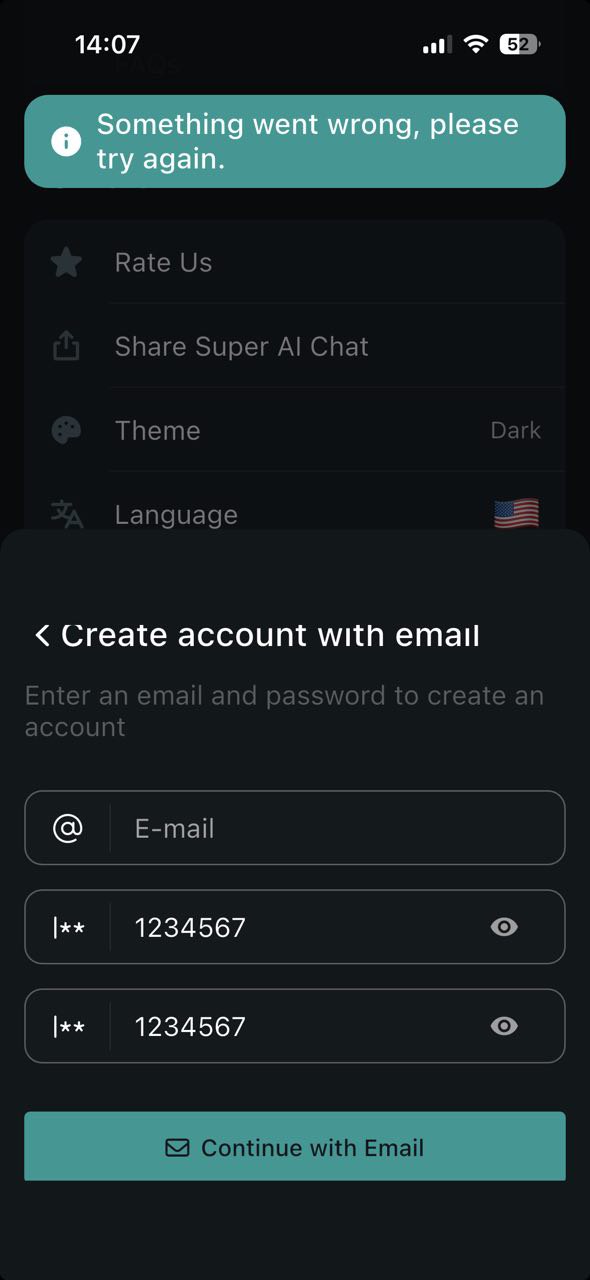
‘Something went wrong, please try again’ error message appears after trying to sign up with empty ‘Email’ field
Severity:
Major
Precondition:
The app is installed.
Steps to Reproduce:
- Navigate to the ‘Settings’ section.
- Select the ‘Create Account’ option.
- Tap the ‘Continue with Email’ option.
- Fill out the ‘Password’ fields.
- Leave the ‘Email’ field empty.
- Tap the ‘Continue with email’ button.
Environment:
iPhone 14 Pro, iOS version 18.6.2
Actual Result:
The ‘Something went wrong, please try again’ error message is displayed.
Expected Result:
Instead of the error message, a validation message should be displayed beneath the ‘Email’ field.
Error message appears after changing ‘Voice’ settings
Severity:
Major
Precondition:
The app is installed.
Steps to Reproduce:
- Navigate to the ‘Settings’ section.
- Scroll down.
- Try to change the ‘Voice’ settings.
Environment:
iPhone 14 Pro, iOS version 18.6.2
Actual Result:
The ‘Oops, our AI tripped over a data cable. Retry it in a few minutes’ error message is displayed.
Expected Result:
The ‘Voice’ settings should be changed successfully without any errors.
Font style changes unexpectedly after generating without modifications
Severity:
Major
Precondition:
- The app is installed.
- The user is on the ‘Chat’ page.
Steps to Reproduce:
- Select the ‘Logo Maker’ option.
- Tap the ‘Create’ button.
- Enter the ‘Logo Name’.
- Select the ‘Logo Style’ option.
- Tap the ‘Create’ button.
- Tap the ‘Modify’ button.
- Do not enter anything.
- Tap the ‘Generate’ button.
Environment:
iPhone 14 Pro, iOS version 18.6.2
Actual Result:
After tapping the ‘Generate’ button without entering any modifications, the font style unexpectedly changes.
Expected Result:
The ‘Generate’ button should be disabled if the user doesn’t enter any modification description.
Grammar mistake in ‘Passwords don’t match’ validation message
Severity:
Minor
Precondition:
- The app is installed.
- The user is on the main page of the app.
Steps to Reproduce:
- Navigate to the ‘Settings’ section.
- Scroll down to the ‘Create Account’ section.
- Tap the ‘Create account’ option.
- Tap the ‘Continue with email’ button.
- Enter any email address.
- Enter different values in the ‘Password’ fields.
- Tap the ‘Continue with email’ button.
Environment:
iPhone 14 Pro, iOS version 18.6.2
Actual Result:
The ‘Passwords dont match’ error message is displayed, and it contains a grammatical mistake.
Expected Result:
The ‘Passwords don’t match’ validation message should be displayed.

Keyboard does not automatically close after uploading photo from ‘Gallery’ to ‘Chat’
Severity:
Minor
Precondition:
- The app is installed.
- The user is on the main page of the app.
Steps to Reproduce:
- Navigate to the ‘Chat’ section.
- Upload a photo from the ‘Gallery’ to the ‘Chat’.
Environment:
iPhone 14 Pro, iOS version 18.6.2
Actual Result:
The keyboard remains open during image processing.
Expected Result:
The keyboard should automatically close after the image has been uploaded.

The Super AI Chatbot application offers a wide range of features that are interesting and potentially very useful. However, in its current state, many of these features do not work as expected. These errors prevent users from accessing the app's core functionality and significantly degrade the overall user experience. I recommend comprehensive testing to identify and fix issues, and regression testing to ensure the fixes take hold.