



No Bugs Found in Akiflow: AI Planner & Calendar for iOS

Akiflow: AI Planner & Calendar
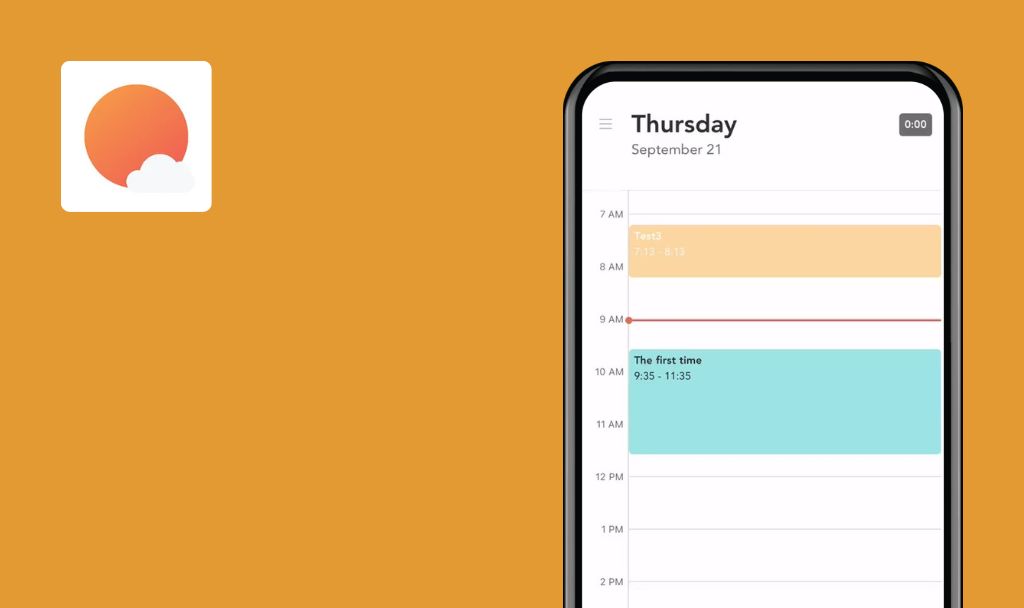
Akiflow is an innovative productivity tool designed to streamline your workflow and enhance your self-organization skills. It combines the functionality of several popular productivity apps into a single interface empowered by AI capability, providing an efficient way to manage tasks and time.
The app includes multiple valuable features, such as time tracking, task automation, and quick note-taking. Users can also collaborate more efficiently by integrating with other popular apps such as Slack, Google Drive, and Trello. Furthermore, an intuitive user interface makes it easier to plan, set priorities, and stay organized.
The QAwerk team conducted an extensive bug crawl of Akiflow. We are happy to note that our testers found no bugs during this search. The application is solid and highly reliable in its core functionality. See our detailed breakdown of the main test cases below.




2.69.05+965
version tested

15+
hours spent testing

>100
test cases run

0
bugs found
No bugs found when creating event using voice assistant
Precondition:
- The user is logged in.
- The calendar is synced.
Steps to Reproduce:
- Launch the app.
- Navigate to the ‘Calendar’ section.
- Tap the ‘Plus’ button.
- Tap the ‘Voice Recording’ icon.
- Tell the AI assistant which call to add to the calendar, including participants and the time.
- Check the ‘Calendar’ again.
Environment:
iPhone 14 Pro, iOS 26.3.1
Expected Result:
The event, with the correct information as specified to the Voice Assistant, should be successfully created and added to the calendar.
Actual Result:
Bug not found.
No bugs found when creating regular event manually
Precondition:
- The user is logged in.
- The calendar is synced.
Steps to Reproduce:
- Launch the app.
- Navigate to the ‘Calendar’ section.
- Tap the ‘Plus’ button.
- Switch to the ‘Event’ tab.
- Enter ‘Event Title’.
- Select a time for the event.
- Select the ‘Every Day’ occurrence option.
- Select the conference.
- Select guests and location.
- Tap the ‘Create’ button.
Environment:
iPhone 14 Pro, iOS 26.3.1
Expected Result:
A new event with accurate information should be successfully created in the user’s calendar.
Actual Result:
Bug not found.
BUG EXAMPLE:
No bugs found when updating priority for single task in series of recurring tasks
Precondition:
- The user is logged into the app.
- The calendar is synced.
Steps to Reproduce:
- Launch the app.
- Navigate to the ‘Calendar’ section.
- Tap the ‘Plus’ button.
- Create a recurrent task.
- Navigate to the ‘All Tasks’ tab.
- Locate the created To-do task.
- Open the task.
- Tap the ‘Exclamation Mark’ icon in the top right corner of the modal window.
- Select the desired priority.
- Tap the ‘Save’ button.
- Select the ‘Only this task’ option.
- Check the priority of tasks.
Environment:
iPhone 14 Pro, iOS 26.3.1
Expected Result:
Changing the priority should affect only the selected task. The priority of the other tasks within the recurring series should remain unchanged.
Actual Result:
Bug not found.
BUG EXAMPLE:
No bugs found when adding new project to existing event
Precondition:
- The user is logged into the app.
- The calendar is synced.
- An event is created on the calendar.
Steps to Reproduce:
- Open the ‘Calendar’ section.
- Open an existing event.
- Tap the ‘Project’ button.
- Enter the new project name in the search input field.
- Tap the ‘Create’ button.
- Mark the task as done.
Environment:
iPhone 14 Pro, iOS 26.3.1
Expected Result:
The project should be successfully added to the event. The event should be highlighted in the project’s color.
Actual Result:
Bug not found.
No bugs found when creating task with updated default duration
Precondition:
- The user is logged into the app.
- Default duration is set to 30.
Steps to Reproduce:
- Launch the app.
- Navigate to ‘Settings’→ ‘Select Tasks, Events, Slots’.
- Update the default task duration.
- Navigate to the ‘Calendar’ section.
- Tap the ‘Plus’ button.
- Create a task.
- Check the default duration.
Environment:
iPhone 14 Pro, iOS 26.3.1
Expected Result:
A new task should be created successfully with the updated default duration.
Actual Result:
Bug not found.
No bugs found when receiving notification according to ‘Notifications’ settings
Precondition:
- The user is logged into the app.
- The upcoming event notification setting is enabled.
- The notification setting is set to ‘3 minutes before the event starts’.
Steps to Reproduce:
- Launch the app.
- Tap the ‘Plus’ button.
- Create an event for today in 5 minutes.
- Wait a few minutes for the notification.
Environment:
iPhone 14 Pro, iOS 26.3.1
Expected Result:
The push notification for the forthcoming event should be received 3 minutes before the scheduled start time.
Actual Result:
Bug not found.
BUG EXAMPLE:
No bugs found when duplicating task
Precondition:
- The user is logged into the app.
- A task is added to the ‘To-Do’ list.
Steps to Reproduce:
- Launch the app.
- Navigate to the ‘All Tasks’ menu.
- Scroll down to the ‘To-Do Lists’ section.
- Open the task.
- Tap the ‘Three Dots’ menu icon.
- Select the ‘Duplicate’ option.
Environment:
iPhone 14 Pro, iOS 26.3.1
Expected Result:
The task should be duplicated successfully. All relevant data should be copied to the new duplicate task.
Actual Result:
Bug not found.
No bugs found when deleting scheduled event
Precondition:
- The user is logged into the app.
- An event is scheduled.
Steps to Reproduce:
- Open the ‘Calendar’ section.
- Tap on the scheduled event.
- Tap the ‘Three Dots’ menu icon.
- Select the ‘Delete’ option.
- Confirm deletion by tapping the ‘Delete’ button.
Environment:
iPhone 14 Pro, iOS 26.3.1
Expected Result:
A notification banner stating ‘Event has been deleted’ should be displayed. The deleted event should no longer be displayed in the calendar.
Actual Result:
Bug not found.
BUG EXAMPLE:
No bugs found when verifying how ‘Done’ tasks are displayed
Precondition:
- The user is logged into the app.
- The project is created with the list of open tasks.
Steps to Reproduce:
- Open the project.
- Verify that the project contains the list of open tasks.
- Mark one of the open tasks as ‘Done’.
- Tap the top right corner menu icon.
- Enable the ‘Show Done’ toggle.
Environment:
iPhone 14 Pro, iOS 26.3.1
Expected Result:
The task list should now include the tasks marked as ‘Done’.
Actual Result:
Bug not found.
No bugs found when pinning project in navigation bar
Precondition:
- The user is logged into the app.
- The project with created tasks exists.
Steps to Reproduce:
- Open the main menu.
- Open any existing project.
- Open the menu by clicking the icon in the top right corner.
- Select the ‘Pin in navbar’ option.
- Tap the ‘Inbox’ option.
Environment:
iPhone 14 Pro, iOS 26.3.1
Expected Result:
The pinned project should be displayed in the navigation bar.
Actual Result:
Bug not found.
I identified no major issues or critical defects while testing the Akiflow mobile app. The core functionalities, including task management, calendar synchronization, and navigation between main features, perform as expected. The app delivers stable performance, ensuring a smooth user experience, which can be further enhanced by implementing the best QA practices.

No Bugs Found!
 We tried to find bugs in this product but failed to spot any. While we still believe no software is 100% free of bugs, this app contains no critical or apparent defects that could negatively impact the user experience.

