

No Bugs Found in VibeMeal: AI Calorie Counter for iOS

VibeMeal: AI Calorie Counter
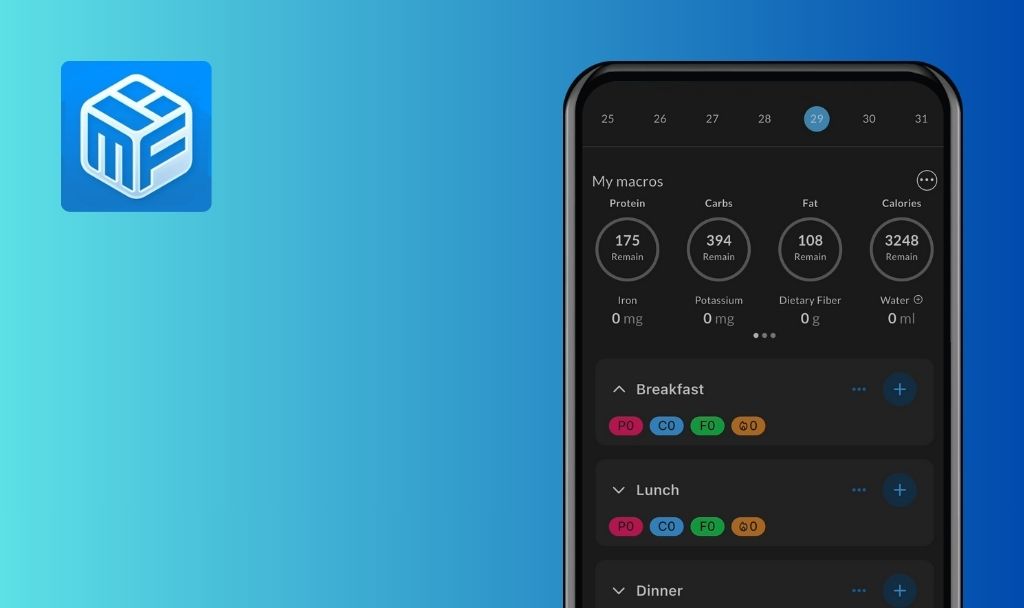
VibeMeal: AI Calorie Counter is an efficient health and fitness mobile app that uses AI to help users track calories and nutritional information. With the simple act of uploading or capturing a photo of a meal, the application can automatically recognize the food and estimate its calories, protein, carbohydrates, and fat. This replaces the need for users to log their food manually.
Going a step further, VibeMeal aims to speed up and simplify the diet-tracking process. Its ultimate goal is to help users monitor their nutritional intake, steering them towards achieving their health and fitness goals. This mobile application serves as more than a mere diet-tracking tool. It integrates technological convenience with a user’s daily nutritional regimen.
We conducted a bug crawl of VibeMeal and were happy to discover no bugs. See our analysis of the app below to find out how implementing the best QA practices could further strengthen this great product.




1.0.6
version tested

12+
hours spent testing

>100
test cases run

0
bugs found
No bugs found when recalculating calories based on new weight
Precondition:
The user is logged in.
Steps to Reproduce:
- Open the app.
- Navigate to the ‘Stats’ tab.
- Tap the ‘Update Weight’ button.
- Select the current weight.
- Tap the ‘Save’ button.
- Select the ‘Recalculate’ option.
- Navigate to the ‘Home’ page.
Environment:
iPhone 14 Pro, iOS 26.3.1
Expected Result:
The calorie (kcal) values should be updated according to the new weight.
Actual Result:
Bug not found.
No bugs found when logging food using ‘Voice Log’ feature
Precondition:
- The user is logged in
- Access to the microphone is enabled in the app settings.
Steps to Reproduce:
- Open the app.
- Tap the ‘Plus’ button.
- Select the ‘Voice Log’ option.
- Record the food using dictation.
- Tap the ‘Finish’ button.
- Review the results.
Environment:
iPhone 14 Pro, iOS 26.3.1
Expected Result:
- The food should be logged successfully with accurate calculations projected for kcal, carbs, proteins, fats, Ingredients, and health-check metrics.
- The logged food information should be displayed on the ‘Home’ page.
Actual Result:
Bug not found.
No bugs found when adding found food to ‘Saved Foods’ tab
Precondition:
The user is logged in.
Steps to Reproduce:
- Open the app.
- Tap the ‘Plus’ button.
- Select the ‘Food Database’ option.
- Enter the name of the food in the ‘Search’ field.
- Tap the ‘Plus’ icon next to the found result.
- Tap the ‘Log’ button.
- Tap the ‘View’ button.
- Tap the ‘Saved’ icon in the top right corner.
- Tap the ‘Done’ button.
- Navigate to the ‘Saved Food’ tab.
Environment:
iPhone 14 Pro, iOS 26.3.1
Expected Result:
The user should be able to view the added food item in the ‘Saved Foods’ tab.
Actual Result:
Bug not found.
No bugs found when updating logged food
Precondition:
- The user is logged in.
- There are logged products on the ‘Home’ page.
Steps to Reproduce:
- Open the app.
- Select any logged food item.
- Update the values.
- Tap the ‘Done’ button.
Environment:
iPhone 14 Pro, iOS 26.3.1
Expected Result:
- The user should be able to recalculate values of kcal, including Carbs, Fats, and Proteins.
- The new value should be displayed after saving.
Actual Result:
Bug not found.
No bugs found when updating main goal
Precondition:
The user is logged in.
Steps to Reproduce:
- Open the app.
- Navigate to the ‘Stats’ tab.
- Tap the ‘Change Goal’ option.
- Select another value on the ‘What is your main goal?’ page.
- Tap the ‘Save’ button.
- Select the weight on the ‘What weight would you like to reach?’ page.
- Tap the ‘Save’ button.
- Tap the ‘Keep current’ option on the ‘Recalculate calories?’ pop-up.
Environment:
iPhone 14 Pro, iOS 26.3.1
Expected Result:
The user should be able to see the updated goal together with the desired weight.
Actual Result:
Bug not found.
No bugs found when calculating caloric intake by uploading photo from gallery
Precondition:
The user is logged in.
Steps to Reproduce:
- Open the app.
- Tap the ‘Plus’ button.
- Select the ‘Scan Food’ option.
- Select the ‘Gallery’ option.
- Upload a food photo from the gallery.
- Tap the ‘Send’ button.
- Answer additional questions.
- Observe the result.
Environment:
iPhone 14 Pro, iOS 26.3.1
Expected Result:
The user should expect to see detailed calculations of calories, including breakdowns for Carbs, Protein, and Fats. The report should also contain ‘Ingredients’ and ‘Health Check’ data.
Actual Result:
Bug not found.
BUG EXAMPLE:
No bugs found when logging voice without access to microphone
Precondition:
- The user is logged in.
- The microphone is not enabled in the app settings.
Steps to Reproduce:
- Open the app.
- Tap the ‘Plus’ button.
- Select the ‘Voice Log’ option.
- Try to record a voice message.
Environment:
iPhone 14 Pro, iOS 26.3.1
Expected Result:
- A pop-up message ‘Microphone access required’ should appear.
- The user should be unable to proceed with the recording until the microphone access is granted.
Actual Result:
Bug not found.
No bugs found when logging food from ‘Saved Foods’ tab
Precondition:
- The user is logged in.
- Some foods are added to the ‘Saved Foods’ tab.
Steps to Reproduce:
- Open the app.
- Tap the ‘Plus’ button.
- Select the ‘Saved Foods’ option.
- Select any item from the ‘Recently Added’ section.
- Update the quantity of food items.
- Tap the ‘Log’ button.
- Navigate to the ‘Home’ page.
Environment:
iPhone 14 Pro, iOS 26.3.1
Expected Result:
The food should be logged successfully, with the quantities of kcal, carbohydrates, protein, and fats accurate and successfully recalculated.
Actual Result:
Bug not found.
No bugs found when adjusting nutrition goals
Precondition:
The user is logged in.
Steps to Reproduce:
- Open the app.
- Navigate to the ‘Profile’ section in the top right corner of the app.
- Select the ‘Adjust Nutrition Goals’ option.
- Update the ‘Fats’ value.
- Check the ‘Calories’ field.
- Update the ‘Proteins’ value.
- Check the ‘Calories’ field.
- Update the ‘Carbs’ value.
- Check the ‘Calories’ field.
- Update the ‘Calories’ field.
- Check the ‘Carbs/Proteins/Fats’ values.
- Tap the ‘Save’ button.
- Open the ‘Edit Nutrition Goals’ page again.
Environment:
iPhone 14 Pro, iOS 26.3.1
Expected Result:
- After updating the ‘Calories’ field, the values of ‘Carbs’, ‘Proteins’, and ‘Fats’ should be recalculated.
- After any of the fields (‘Carbs’, ‘Proteins’, or ‘Fats’) is updated, only the ‘Calories’ value should be recalculated.
- Once the ‘Edit Nutrition Goals’ page is reopened, all updated values should be displayed.
Actual Result:
Bug not found.
BUG EXAMPLE:
No bugs found when taking picture of non-food item using ‘Scan Food’ feature
Precondition:
The user is logged in.
Steps to Reproduce:
- Open the app.
- Tap the ‘Plus’ button.
- Select the ‘Scan Food’ option.
- Take a picture of a non-food item.
- Tap the ‘Send’ button.
- Wait for analysis.
Environment:
iPhone 14 Pro, iOS 26.3.1
Expected Result:
- ‘Product not found’ warning message is displayed with the following note:
A warning message stating ‘Product not found’ should be displayed, including a note instructing the user to ‘Take a photo of the back showing calories, protein, fats, carbs, and package weight.’ - A ‘Got it!’ button should be present.
Actual Result:
Bug not found.
During testing, I identified no major or critical issues. The application appears stable and performs its core functionality as expected. The user interface is intuitive and user-friendly, making it easy to navigate and interact with the main features. Overall, the app provides a smooth user experience, and the AI-based food recognition works efficiently. I believe it could be further strengthened by undergoing comprehensive QA testing.

No Bugs Found!
 We tried to find bugs in this product but failed to spot any. While we still believe no software is 100% free of bugs, this app contains no critical or apparent defects that could negatively impact the user experience.

