Bugs Found in Vimcal: Calendar and Schedule for iOS


Vimcal is a versatile digital calendar application designed to streamline scheduling and enhance productivity. The user-friendly interface offers a suite of smart tools and features, facilitating seamless integration with multiple platforms for efficient time management.
Delving deeper, Vimcal fosters efficient scheduling with an overlapping-events view, intuitive drag-and-drop, and a smart scheduling assistant. Its interoperability with Google Calendar, Outlook, and Apple Calendar enables seamless synchronization, ensuring you always stay organized and up to date.
The QAwerk team ran a detailed bug crawl of the Vimcal platform and discovered several bugs. Some actions exhibit inconsistency from both functional and UX standpoints, potentially affecting synchronization and event management. We invite readers to explore our comprehensive findings for deeper insight.
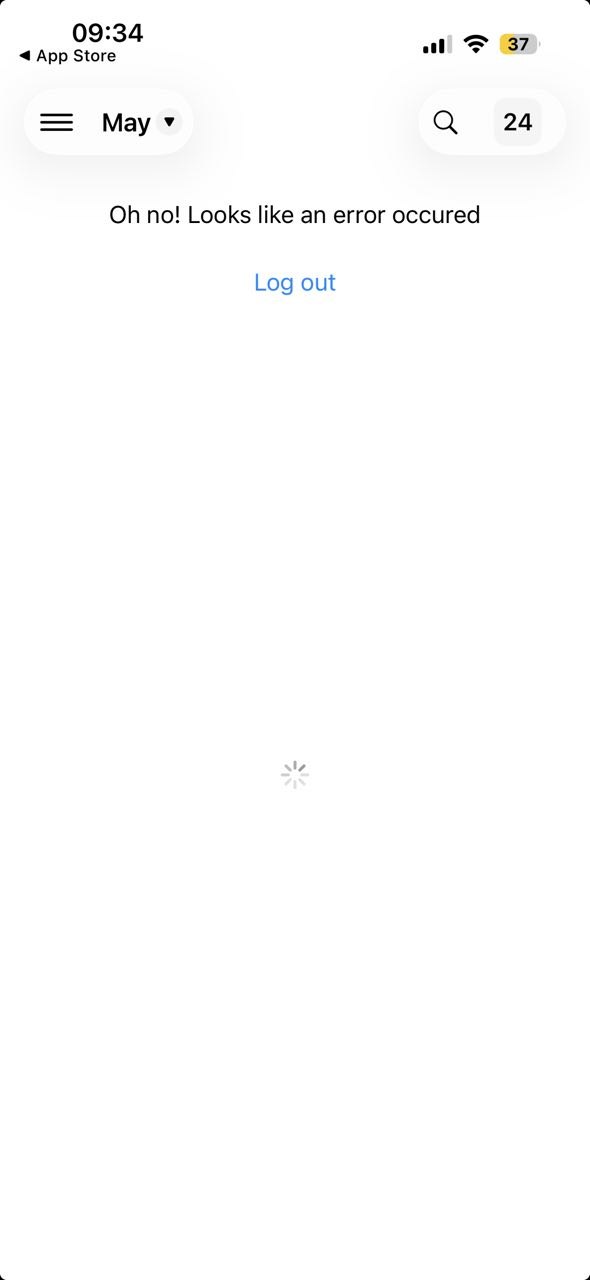
‘Oh no! Looks like an error occurred’ error message is displayed after signing in with Google
Severity:
Critical
Precondition:
- The app is installed.
- The user is on the ‘Sign In’ page.
Steps to Reproduce:
- Select the ‘Sign in with Google’ option.
- Select the user’s Google account and proceed.
Environment:
iPhone 14 Pro, iOS version 26.4.2
Actual Result:
The ‘Oh no! Looks like an error occurred’ error message is displayed after signing in.
Expected Result:
No error messages should be displayed after signing in.
‘Failed to update event’ error message is displayed after editing event and creating new tag
Severity:
Major
Precondition:
- The app is installed.
- An existing event has been created.
Steps to Reproduce:
- Open an existing event.
- Tap the ‘Edit’ button.
- Try to create a new tag during event editing.
- Tap the ‘Done’ button.
- Close the event.
Environment:
iPhone 14 Pro, iOS version 26.4.2
Actual Result:
The new tag has not been created. An error message, ‘Failed to update event’, is displayed, indicating that the event update was unsuccessful.
Expected Result:
The user should be able to create a new tag while editing an event and successfully save or update the event without errors.
RSVP controls are displayed for event organizer
Severity:
Major
Precondition:
- The app is installed.
- The user creates an event and invites at least one attendee.
Steps to Reproduce:
- Open a created event.
- Check the details.
Environment:
iPhone 14 Pro, iOS version 26.4.2
Actual Result:
RSVP controls, including options like ‘Attending’, ‘Maybe’, and ‘Not Attending’, are displayed for the event organizer. The organizer can interact with these options and change their attendance status.
Expected Result:
RSVP controls should not be visible to the event organizer. As the event’s creator, the organizer’s attendance should be presumed. Instead, the organizer should have access to actions such as ‘Edit Event’, ‘Cancel Event’, ‘Manage Attendees’, etc. Only the attendees invited to the event should have access to the RSVP options.
New events created from past calendar dates are automatically scheduled in past
Severity:
Major
Precondition:
- The app is installed.
- The app is open.
- The user is on the ‘Calendar’ tab.
Steps to Reproduce:
- Navigate to the past week or day in the calendar.
- Tap the ‘+’ button to create a new event.
- Check the event date.
Environment:
iPhone 14 Pro, iOS version 26.4.2
Actual Result:
The event date is automatically set to the previously selected date. Additionally, the user can set up reminders for these past events.
Expected Result:
The system should default to the current date for new events.
NOTE:
The current behavior could potentially lead to the accidental creation of past events, causing reminders to be missed.
Application allows creating events in past
Severity:
Major
Precondition:
- The app is installed.
- The user is on the ‘Calendar’ tab (today’s date).
Steps to Reproduce:
- Tap the ‘+’ button to create a new event.
- Select a date/time earlier than the current time.
- Save the event.
Environment:
iPhone 14 Pro, iOS version 26.4.2
Actual Result:
The event is successfully created in the past.
Expected Result:
The system should either prevent the creation of past events or display a clear confirmation/validation message.
Yearly recurring event created on February 29 generates corrupted non-openable event entries
Severity:
Major
Precondition:
The app is installed.
Steps to Reproduce:
- Create a new event on February 29, 2028.
- Save the event.
- Open the event editing screen.
- Set the recurrence to ‘Repeat Every Year’.
- Set the recurrence end date to March 7, 2029.
- Save the changes.
- Open the calendar view.
Environment:
iPhone 14 Pro, iOS version 26.4.2
Actual Result:
Blue spanning event bars are displayed on the calendar. The generated entries are non-responsive, and the recurrence behavior is unclear.
Expected Result:
The system should properly handle yearly recurrence for leap-day events. It should either repeat the event only on leap years and skip invalid years, or prompt the user on how to handle the February 29 recurrence. The application should not generate broken or unclickable calendar entries.
QA testing demonstrated that the app possesses a robust foundation and a user-friendly calendar structure. However, I identified several issues in critical areas, including recurrence management, RSVP logic, event creation, and event editing. I suggest conducting regression testing to uncover any potential bugs that might affect primary application workflows.